
Need to set up a taxable Custom Fee that is not covered by the Automatic tax rates or by your ShipCompliant integration? Here's how!
Important: Consult your compliance professional to confirm whether tax should be applied to these fees.
Is the fee non-taxable?: Click here to set up Custom Taxes.
Is the fee taxable?: Continue below to set up Custom Fees.
CRV (Califormia Redemption Value)
Setting up the CRV (California Redemption Value) fee? Click here to learn how.
Setting up Custom Fees (Taxable)
- Go to Settings > Taxes
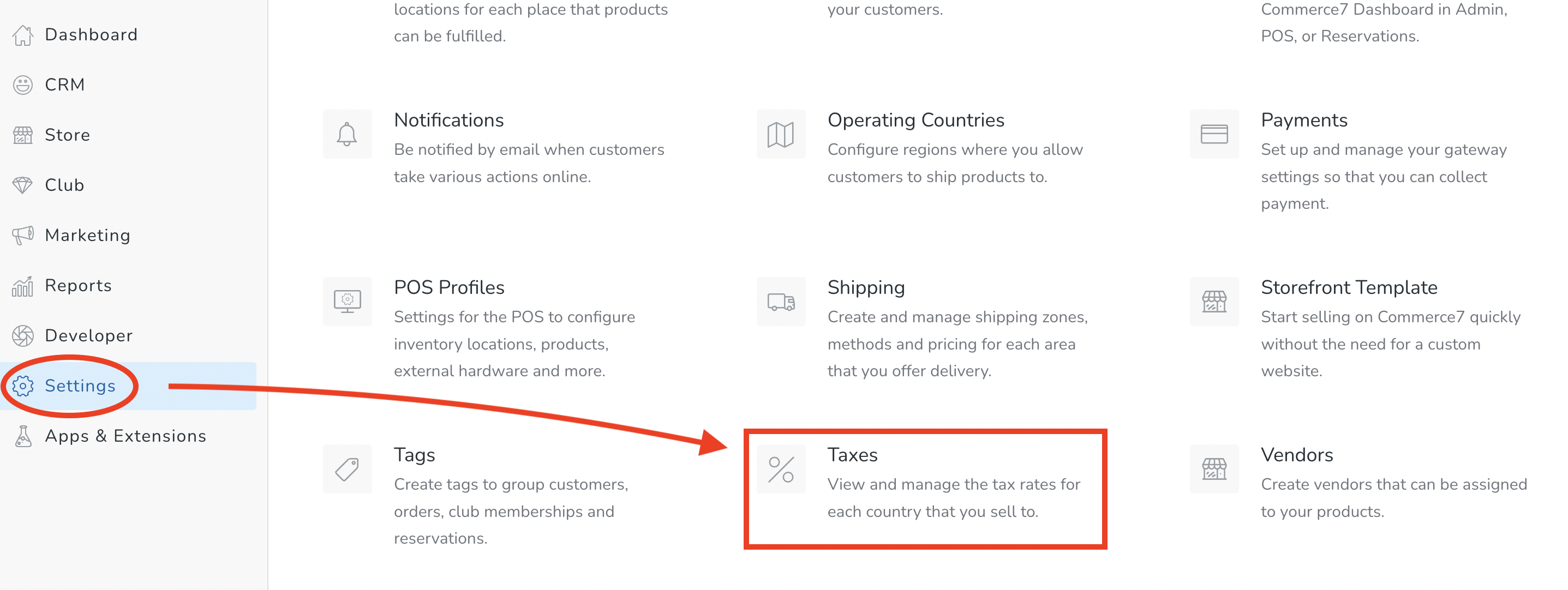
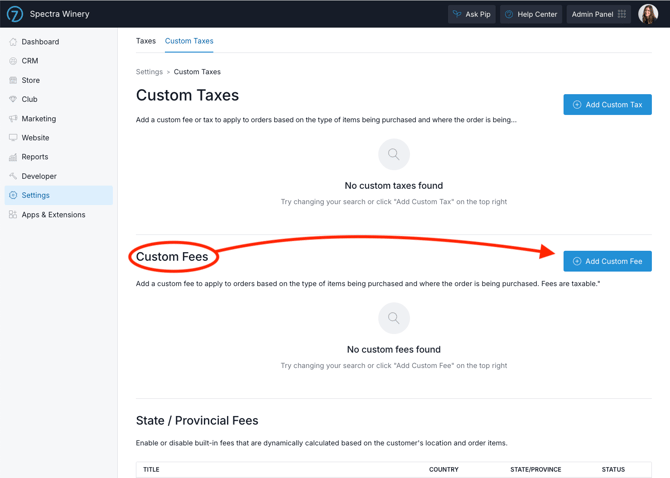
- Choose the Custom Taxes tab > Add Custom Fee button.
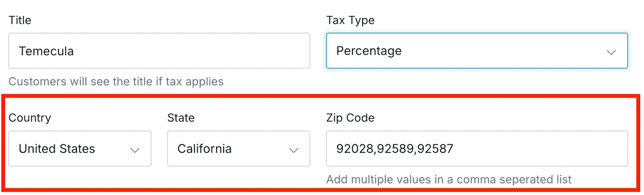
- Enter a Title, and choose Percentage or Flat Rate Per Order.

- Choose Country and State. Enter Zip Codes (separated by commas) if applicable. If no zip codes are defined, then the rate will apply to the entire state.
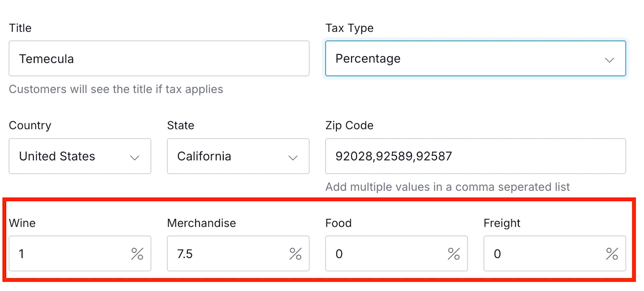
- Enter percentage (or dollar) amounts for each tax type. When satisfied, click the Save Custom Fee button.
- You're all set! Don't forget to test your new Custom Fee.
Any applicable taxes are added on top of Custom Fee amount collected. Customers cannot change this setting.
If you'd rather not have taxes added on top of the fee, click here to learn how to set up Custom Taxes instead.
Using Integrations?
Before you add a custom fee or turn on either Collect tax setting, it’s important to talk to your developer or integration partner. They will need to update the integration to pull in the new values. If you aren’t using any integrations, you can turn them on right away.
Developers can learn more here.