
Download the template, update it with your changes, then upload it. Once the upload is complete, you’ll receive an email summarizing how many rows were imported successfully and how many failed.
Steps
- Go to Settings > Shipping
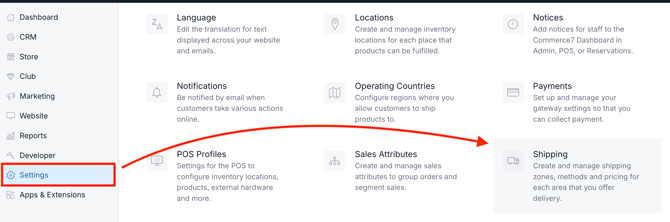
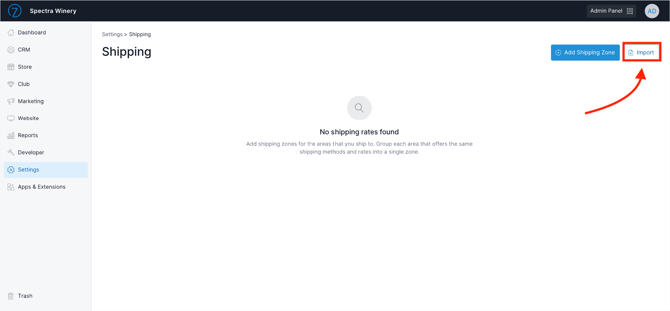
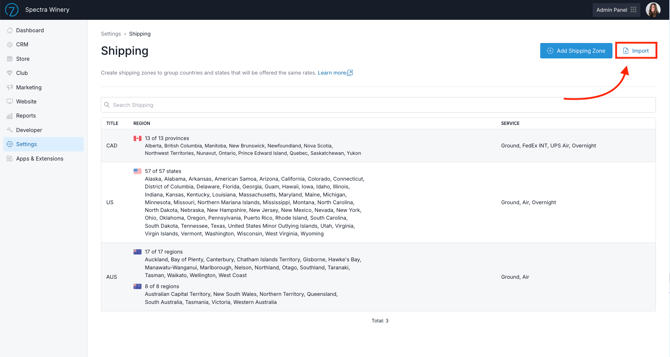
- Click the Import button in the top right.
Import Brand New Rates:
Add to Existing Rates:
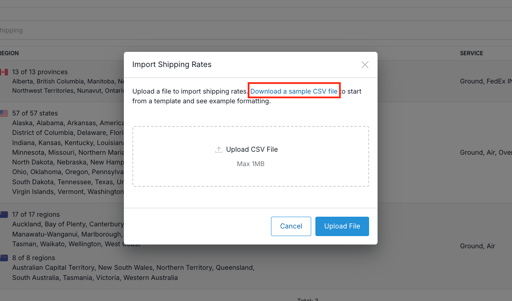
- Click to download the template file. (You can also download it here).
- Adding a brand new Shipping Zone: If you're adding a brand new Shipping Zone, enter the title and add a new row in the file for each new Shipping Method and rate. (An example is shown in the template file).
- Adding a brand new Shipping Method: To add a brand new Shipping Method to an existing Shipping Zone, in your file match the 'Title' to the Shipping Zone you want to update, then add a new row for the new Shipping Method and its rate.
- Adding a new Shipping Rate: To add a new Shipping Rate to an existing Shipping Method within an existing Shipping Zone, match the 'Title' in your file to the Shipping Zone and the 'Shipping Method Title' to the Shipping Method you want to update, then add a new row with the new rate.
- Upload the file.
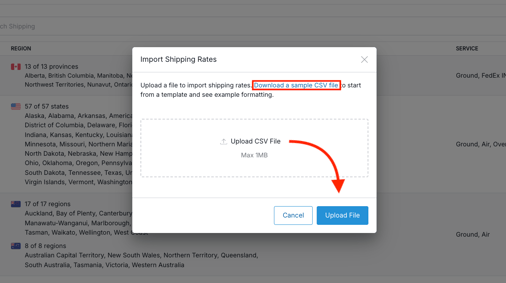
- You'll be sent an email when it's complete. The email will contain a list of errors if any occurred during the import.
Validation Requirements
If any of these requirements aren’t met, errors will appear in your import results.
- Title: Must be a text string. Title should reflect the Services offered in Commerce7. (Note that this is different from ShipCompliant carrier codes).
- Country Code: Must be a valid country code (2 characters)
- State Code: Must be a valid state code for the applicable, entered Country Code
- Multiple can be entered in a comma separated list (no spaces after commas)
- State Codes are only required for the following country codes: US, CA, NZ, AU, ZA. Other countries do not accept state codes.
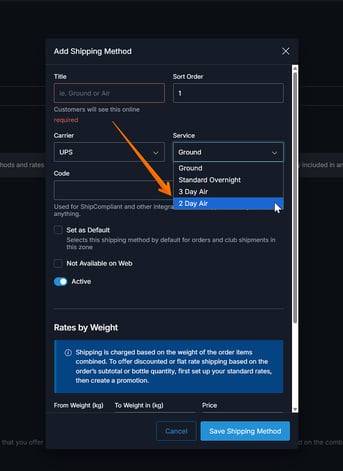
- Carrier: Available carriers are FedEx, UPS and Other.
- Service: Match options based on the Carrier selected.
- To Weight, Price: Decimals accepted
- Available on Web, Active: Yes, No
- All columns are required except for the following:
- State Code, if Country Code is set to anything other than US, CA, NZ, AU, ZA
- Service, if Carrier is set to "Other"
- Available on Web
- Active
FAQ
- Can existing rates be deleted via the import tool?
No. - Can existing rates be edited/updated?
Yes. But only if the Title and Shipping Method Title are an exact match to your existng rates. - Can the 'Wrap Shipping' setting be adjusted via the import tool?
No. The 'wrap shipping' setting is selected automatically for new rates uploaded - and cannot be adjusted via the importer.