
After executing a campaign, you will be able to access the stats such as opens, clicks, unsubscribes and revenue generated from the campaign. All campaigns with a "Processing" or "Executed" status will have stats available. If your email is currently sending, the campaign email stats will continue to update as each email batch is complete.
In this article:
Stats Overview
Summary
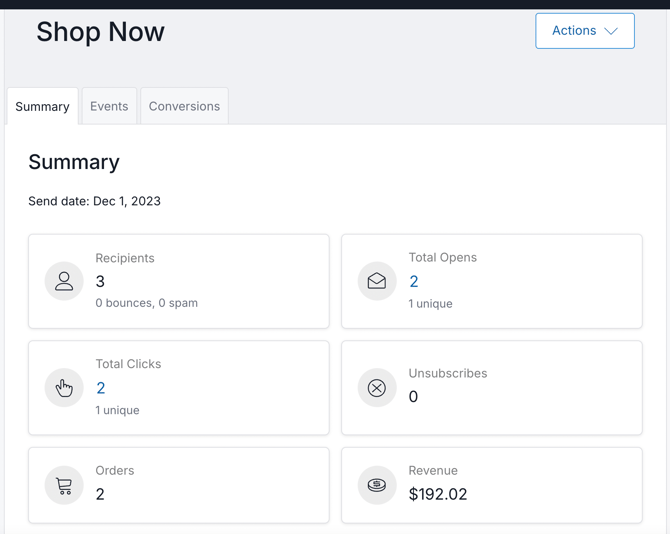
- Recipients: Total number of emails with successful delivery.
- Spam: The number of emails that were delivered to a spam folder.
- Bounces: The number of email addresses that bounced.
- Total Opens: Total number of times the email was opened.
- Uniques: The number of recipients that opened the email.
For example, if a recipient opens the email 15 times that will count as 15 opens but will count as 1 unique open.
- Uniques: The number of recipients that opened the email.
- Total Clicks: Total times a link in an email was clicked.
- Uniques: The number of recipients that clicked on the link inside the email.
For example, if a recipient clicks on the link in their email 5 times that will count as 5 clicks but will count as 1 unique click.
- Uniques: The number of recipients that clicked on the link inside the email.
- Orders: Total count of orders generated from customers clicking the link in the email that lead to an completed order.
- Revenue: Total revenue generated from customers clicking the link in the email that lead to a processed a cart.
- Unsubscribed: Those who unsubscribed from your list on this campaign.
- Blocked: If you have a campaign with a red "Blocked" status, your campaign stopped sending because of too many bounces or untrusted customer emails. Learn more about batch sends here. Learn more about fixing the blocked status here.
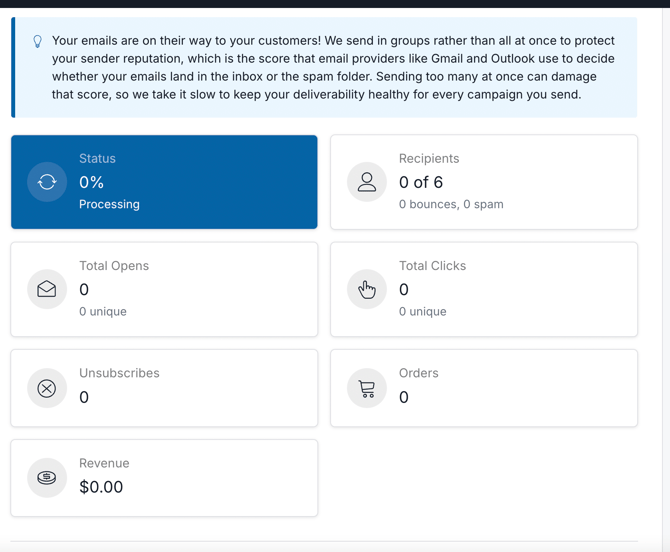
Sending status
- The number of emails that have been sent for each batch. If the campaign isn't fully sent, it will have a status of "Processing". For more information on batching, click here.
Events
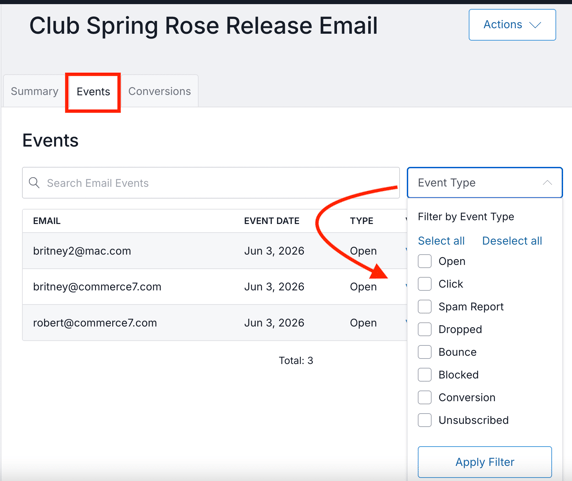
View all of the recipients and easily filter for open, click, spam, dropped, bounce, blocked, conversion and unsubscribed.
- Click on the Events tab of a sent email.
- Use the search to type in a customer's email addresses or use the filters to drill down to clicks, opens, etc.
- Click View Customer to view a specific customer record.
Conversions
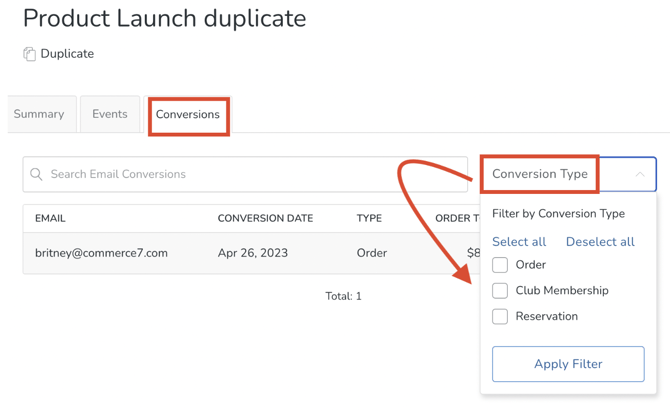
The Conversions tab lists all the recipients that selected the call to action button inside the campaign email and then created an order or reservation, or signed up for a club.
- Click the Conversions tab of a sent email.
- Use the search to type in a customer's email addresses or use the filters to drill down to the type of conversion.
- Click View Order for a specific recipient to view the generated order.
Reporting
You can report on your campaigns in WinePulse, using detailed metrics such as opens, clicks, conversions, revenue generated, unsubscribes, and overall performance trends to evaluate effectiveness and inform future email and marketing decisions.
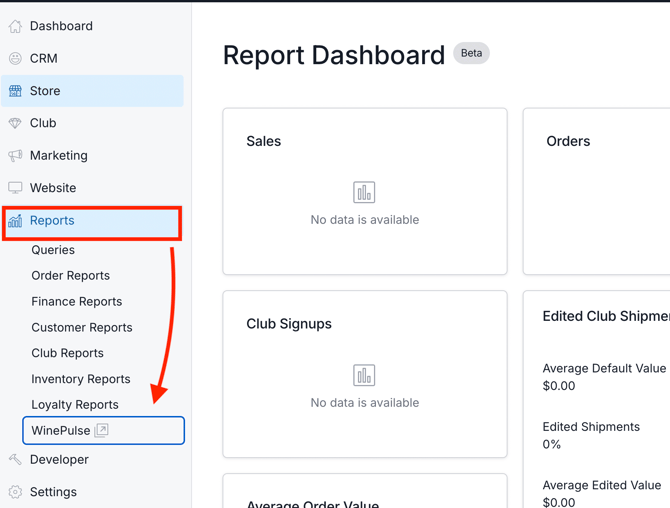
- Go to Reports > WinePulse.
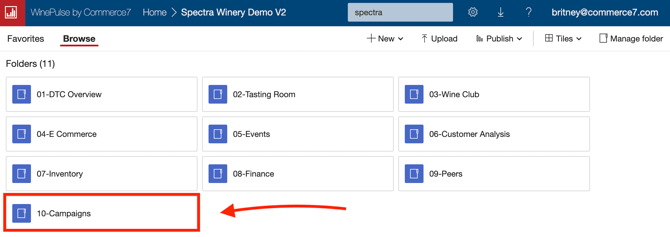
- Click on the Campaigns folder.
- Click into the Campaigns overview report.
Here, you'll see the following: Opens, clicks, performance, etc.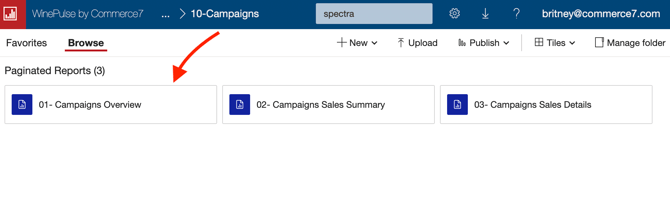
Does this reporting capture open rates and data clicks?
Yes. Email and campaign reporting in WinePulse shows opens, clicks, and performance for all emails - regardless of whether the campaign was sent from Commerce7, Klaviyo, or Mailchimp - as long as the integration partner is sending email events into Commerce7.