
NoFraud Protection integrates with Commerce7 to deliver an accurate pass or fail decision for every online (web) order.
Eliminate Unpredictable Fraud Costs
- Stay One Step Ahead of Fraudsters
- Completely Eliminate Liability For Fraud Chargebacks
In this Article
Step 1: Install the App in Commerce7
Step 2: Install the NoFraud Snippet on your Website
NoFraud Messages and What They Mean
How it Works
- Web Order or Pickup Order is submitted by a Customer on your website (the order may include physical or virtual products).
- Order is automatically analyzed by NoFraud to identify potential fraud.
- If Fraud is NOT Detected
- Orders will proceed through normal processing channels and be marked with a white card labeled ‘Pass’.
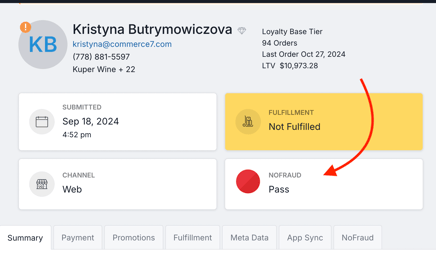
- Orders will proceed through normal processing channels and be marked with a white card labeled ‘Pass’.
- If Fraud is NOT Detected
-
- If Potential Fraud IS Detected
- NoFraud will automatically send a notification email, and the web order will be flagged with a red card labeled ‘Needs review’.
- !!Action is required!!
- Request additional details from customer placing the Web order and/or
- Cancel the Order
- Order will flow the regular path without interruptions.
- If integrations are used for fulfillment (ShipCompliant, etc.) it will need to be manually voided so the order does not get automatically fulfilled.
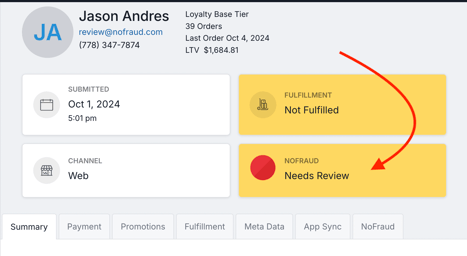
- If Potential Fraud IS Detected
Step 1: Install the No Fraud App in Commerce7
- Log into your NoFraud account. If you do not already have, one sign up at www.nofraud.com.
- From the admin panel, navigate to Integrations.
- Click Create New Integration> More Options and select Custom/Direct API and click Next.
- Select Fraud protection and fill out the form fields with any data you like and click Save.
- Click on View/Edit and Copy the API Key (you will be pasting these into Commerce7).
- In Commerce7, go to Apps & Extensions and search for 'NoFraud'.
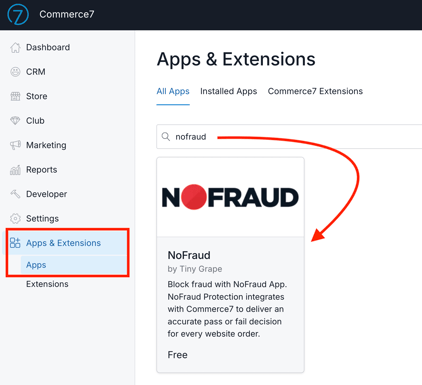
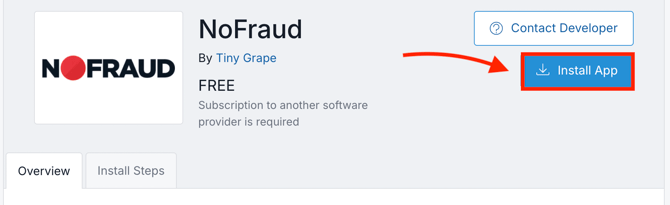
- Click the Install App button.
- Paste the API Key into the applicable field.
- Click the Continue button.
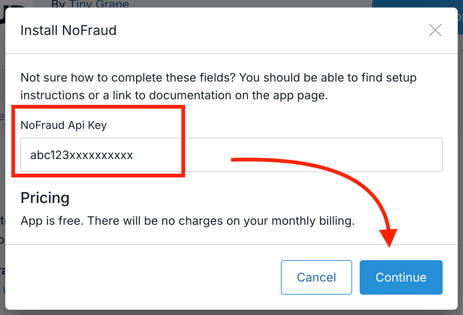
- Ok! That part is done! On to Step 2.
Step 2: Install the NoFraud Snippet on your Website
You will need to add a code snippet to your website, and you will likely want to engage with your web designer to ensure proper implementation. (If you need a designer recommendation, click here for suggestions).- In your NoFraud account, navigate to the Integrations page.
- Add the 'Device JavaScript' to your store. This snippet of code must be added to the Cart and Checkout pages of your site.
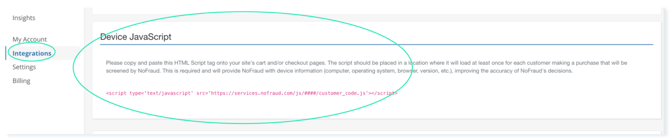
- Place Device JavaScript in a location where you can ensure it will load at least once for each customer completing a purchase. Typically, the best location for this would be the Cart and/or Checkout page(s).
- We recommend placing the script towards the bottom of your <body> element or in your site's <footer> element.
- The Device JavaScript HTML tag for your account is as follows:
- <script type='text/javascript' src='https://services.nofraud.com/js/19924/customer_code.js'></script>;
- The Device JavaScript HTML tag for your account is as follows:
The numerical digits in the sample code above (19924) must be replaced with your unique NoFraud user ID.
Click here to see your account specific Device JavaScript HTML tag.
NOTE: If you have multiple integrations with NoFraud, all integrations will use the same Device JavaScript HTML.
NoFraud Messages Explained
- Pass - The order has been deemed low-risk, and can be processed.
- Fail - The order has been deemed high-risk, and likely fraudulent. The order should be cancelled and refunded.
- IMPORTANT - Automated fulfillment & fulfillment integrations: The order will pass without interruptions into your fulfillment center. Void the order immediately to avoid shipping the order out.
- Needs Review - The transaction has high-risk characteristics but has the potential to be a valid transaction, and is reviewed by a NoFraud analyst. Orders in the Review status should not be processed until the results of the review are complete.
- Cancelled - This order has been cancelled.
Not Required - This order does not require NoFraud verification as it’s not a WEB channel order.
Questions abut the NoFraud App?
Contact support@commerce7.com.