
- This feature is only compatible with our latest Frontend V2.
- All language that previously existed in the 'Website Messages' section is editable here.
- If you are utilizing V1, click here.
The Language feature is not available for C7 Lite users.
If you would like to upgrade to the full version of Commerce7, please contact Support.
Note: Whatever word or term you customize will display everywhere that is Customer-facing (frontend, email notifications. etc).
Customizing One Word or Phrase at a Time
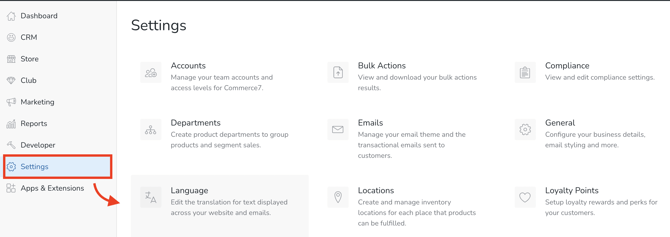
- Go to Settings > Language
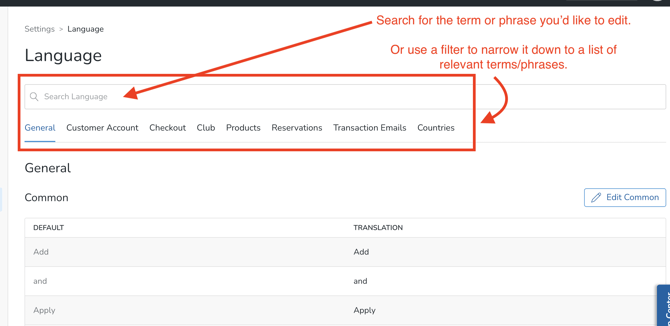
- Search for the term or phrase you'd like to customize.
- Use the Search bar for a specific word or phrase (example: "cart"). The Search bar searches across all categories.
- Choose a filter that is most relevant for that word or phrase (example: if you're looking for "cart", the most relevant filter would be 'Checkout').
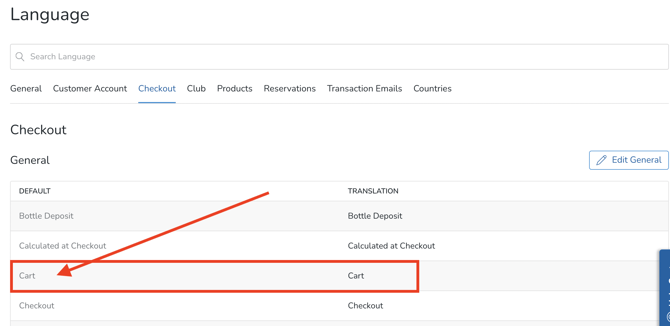
- When you've found the correct word or phrase, click into it.
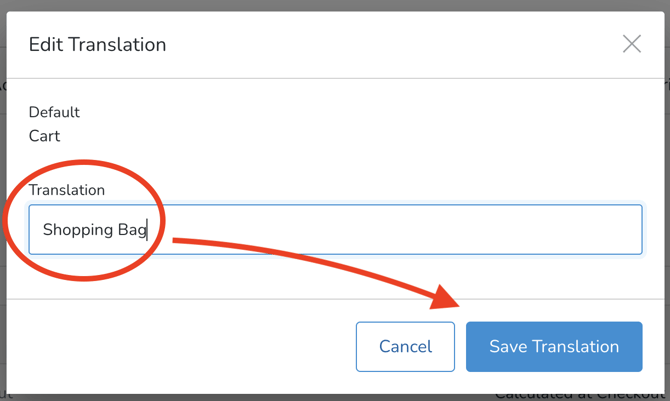
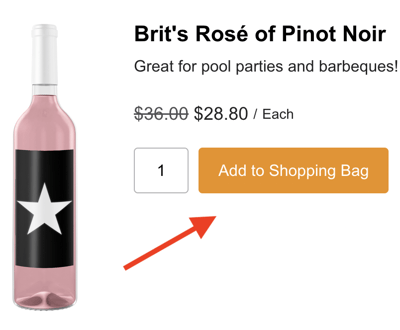
- Enter in the custom word or phrase and Save Translation. (Example: Editing Cart to 'Shopping Bag').
- Result: 'Shopping Bag' will now replace 'Cart' across the entire platform (frontend, email notifications, etc).
Customizing Multiple Words or Phrases at a Time (example: translation into a different language)
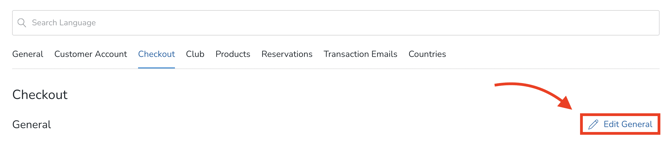
If you are needing to customize a lot of words or phrases (say, in the case of translating into a different language), you can choose the 'Edit Common' or 'Edit General' buttons.
- Most of the categories contain sub-sections. For instance, when using the Checkout filter, the first sub-section is 'General'. And as you scroll down the page, you'll also see sub-section buttons for Header-Footer, Delivery, Payment, etc.
- Click the button for the applicable category sub-section you'd like to edit.
- Make your edits and Save Translation button at the bottom of the list section.
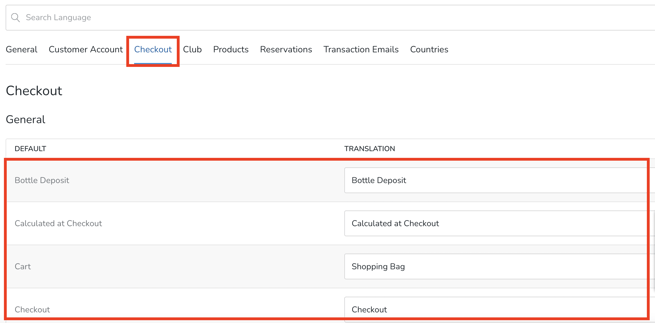

Note that whatever word or term you customize will display everywhere that is Customer-facing (frontend, email notifications. etc).