
What it is
The Automations section under Marketing lets wineries build trigger-based email campaigns that run in the background. Seven trigger types are supported, each with condition-based rules, configurable send delays, and support for multiple automations per trigger to build sequenced series.
Why we built it
Timely, relevant emails drive results, but building them manually is time-consuming and easy to let slip. Automations put key customer moments on autopilot, so wineries can focus on hospitality while Commerce7 handles the follow-up.
A follow-up email that never gets sent is a missed opportunity. Automations make sure the right message goes out at the right moment, every time.
In this Article
| Automation Types | Understanding your Stats |
| Creating an Automation | Managing the Queue |
| Automation Statuses | Queue Statuses |
| Understanding your Stats | Cancelling an Email |
Automation Types
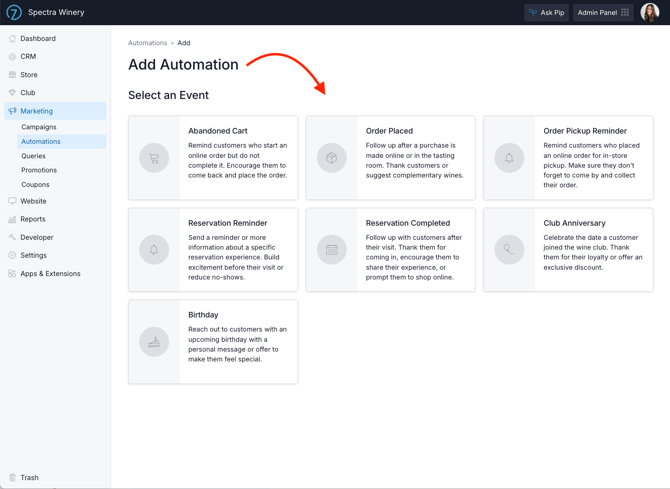
- Order Placed: Sends after a customer completes an order. Great for thank-you emails, cross-sells, or post-purchase follow-ups.
- Abandoned Cart: Sends when a customer adds items to their cart online, but doesn't complete checkout.
- Order Pickup Reminder: Reminds customers that they have an order ready for pickup.
- Reservation Reminder: Sends before an upcoming reservation to reduce no-shows and build anticipation.
- Reservation Completed: Sends after a tasting room visit. Ideal for thank-you notes and encouraging an online follow-up purchase.
- Birthday: Sends around a customer's birthday. Works best with a personal message or special offer.
- Club Anniversary: Sends on the anniversary of a customer joining your wine club. A great loyalty touchpoint.
Creating an Automation
- Go to Marketing > Automations and click Add Automation.
- Choose an automation type from the list.
- Fill in the details:
- Title: An internal name for your reference. Customers never see this.
- Conditions: Optional filters to narrow down which customers receive the email (e.g. only POS orders, only orders over $50). The available conditions change depending on the automation type.
- Timing: How long before or after the trigger event, the email should be sent (e.g. 1 hour, 48 hours, 3 days before). Timing options change depending on the automation type.
- Email: Configure the from name, from email, subject line, and preview text.
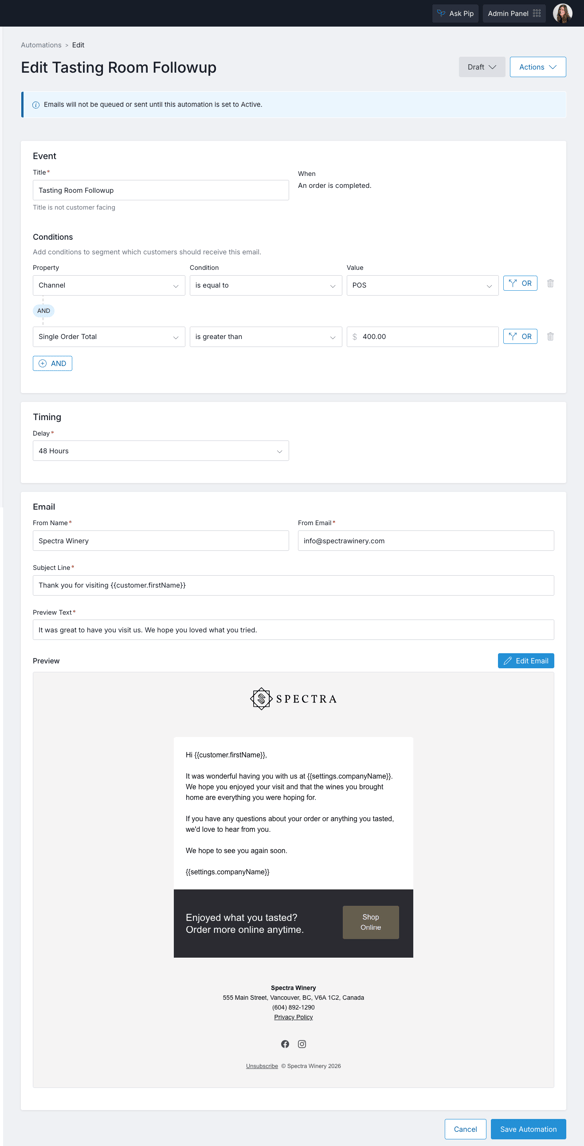
- Each automation type has default content to help you get started. Click Edit Email to update the email's content based on the conditions that you added or update it to better reflect your brand voice.
- Save the automation.
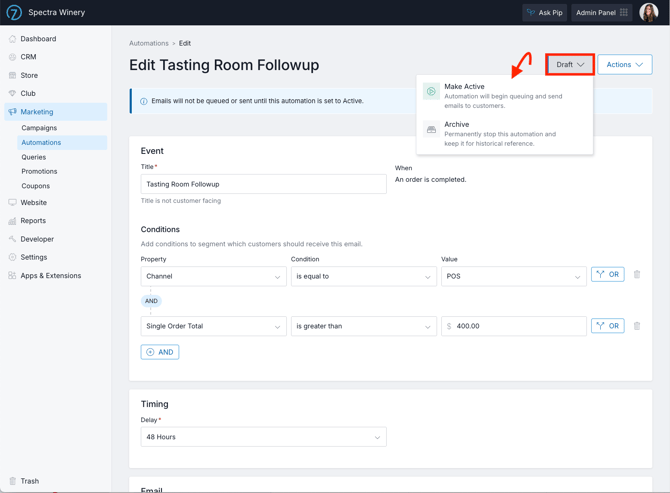
- It will be created in Draft status.
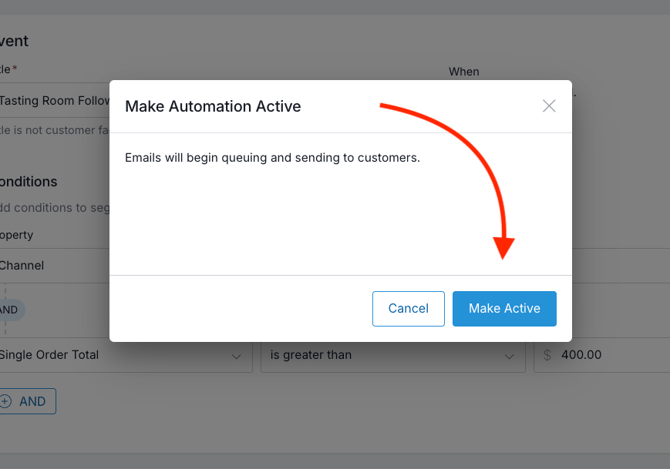
- Once you are ready to make the automation active, go to the Draft dropdown and choose Make Active.
Automation Statuses
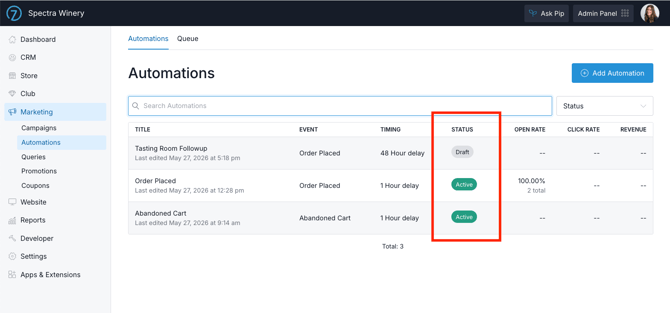
Automations move through the following statuses:
- Draft: The automation has been created but is not yet sending. You can edit all settings. From Draft, you can make the automation Active or delete it.
- Active: The automation is live. It will automatically queue and send emails to matching customers. You cannot edit settings while the automation is active.
- Paused: The automation has been temporarily stopped. Any emails in the queue will be removed and you will be able to adjust any settings. You can reactivate at any time.
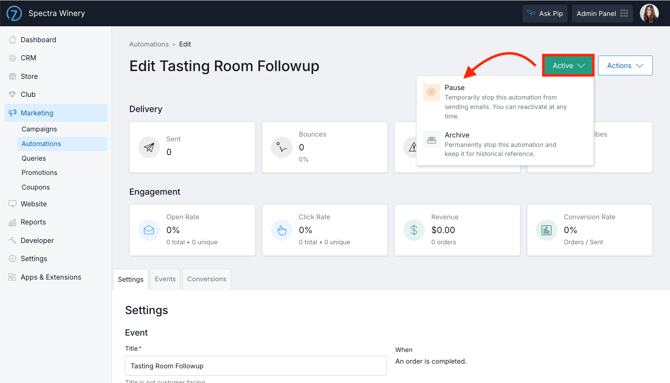
- Archived: The automation has been permanently stopped. Historical data is preserved for your records, but no further emails will be sent. Archiving cannot be undone.
Understanding Your Stats
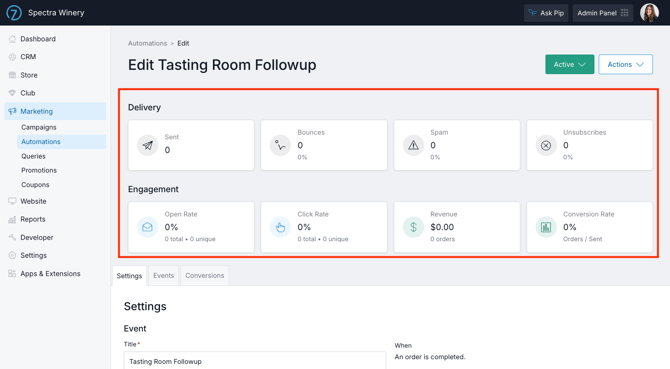
Once an automation is made active, you'll see performance stats at the top of the edit page:
- Sent: Total sent
- Bounces: Count and bounce rate
- Spam: Count and spam rate
- Unsubscribes: Count and unsubscribe rate
- Open rate: Total count, unique count, and open rate
- Click rate: Total count, unique count, and click rate
- Revenue: Orders attributed to the campaign and total dollar value
- Conversion rate: Calculated as orders placed divided by emails sent
You can view a full list of email events and conversions (orders) by using the tabs below the stat cards.
Tips for Better Results
- Use conditions to keep emails relevant. A post-purchase email that goes to every single customer regardless of order type can feel generic. Adding a condition like "Channel is POS" or "Total is greater than $50" helps ensure the right customers get the right message.
- Test your subject lines. The subject line has the biggest impact on open rates. Keep it personal, concise, and specific to what the customer did.
- Don't start with a discount. Incentive-based emails (like a 10% off abandoned cart offer) can work well, but if you lead with discounts too early, customers learn to wait for them. Start with a warm reminder, and save the offer for a second follow-up if needed.
- Check your stats regularly. A high cancellation count can signal that customers are unsubscribing shortly after being triggered, which may mean the email isn't the right fit for that audience, or too many are being sent
- A/B Testing: Want to test out different versions of an email to monitor its effects on conversion? Create 2 separate automations. Make 1 Active and review the stats. Pause it, then make the other Active to see which performs better.
Managing the Queue
The queue lists every email that has been triggered by an automation and is scheduled to send. Emails remain in this queue from the moment a customer triggers the automation until the moment the email is actually delivered.
- Go to Marketing > Automations and click Queue at the top of the Automations page.
- You can filter by automation, status, and date range to find specific entries.
- Each entry in the queue shows the customer name, the automation it belongs to, the scheduled send time, and the current status.
- Once the email reaches the send time, it will be sent to the customer. If the customer has multiple email addresses on file, it will be sent to all, just like other emails in Commerce7.
Queue Statuses
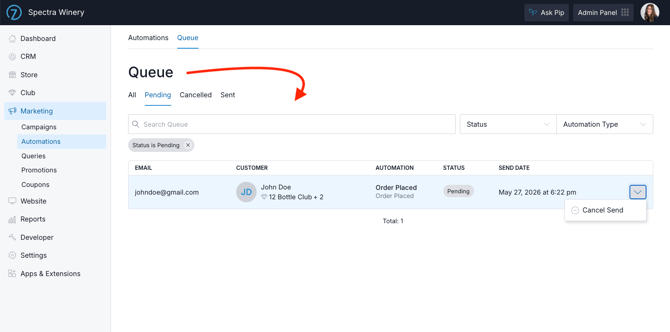
- Pending: The email is scheduled and waiting to be sent. It will send automatically at the scheduled time unless cancelled.
- Sent: The email has been successfully delivered.
- Cancelled: The email was removed from the queue before it could send. This can happen for several reasons:
- The automation was paused or archived
- The customer unsubscribed before the send time
- The entry was manually removed by an admin
- The customer completed the action before the email was necessary (for example, if a customer completed their cart before the Abandoned Cart email was sent).
Cancelling an Email
If you need to stop a specific email from sending, find the entry in the queue, click the dropdown and select Cancel.
This removes this item from the queue and the email will not be sent. The customer can still be sent emails in the future through the automation.
FAQ
-
Will the automated birthday email have the ability to send a one time use coupon/discount?
The birthday automation cannot currently send a one-time-use, auto-generated coupon. Supporting this would require additional development. -
Can you add pictures or other media to the automated emails?
Yes, you can add images to automated emails. Embedded video is not supported in most email clients, so we recommend linking to a video instead. -
Is it possible to have a template email auto scheduled to request reviews on Google Business Profile or TripAdvisor?
Yes. You can create an email automation that sends a review request to the guest after an order is placed or a reservation is completed.