
Sometimes a customer may start a reservation without completing payment online. This feature gives you the opportunity to do one of two things:
- Complete the reservation transaction for the customer.
- Send an email to the customer so that they can complete the reservation transaction themselves.
Creating a Website Link to a Reservation Cart
- Go to the POS > Reservations > Reservation Carts.
- Click into the applicable Cart.
- Side Note: If you want to complete the payment for the customer, scroll down and click the Complete Reservation button.
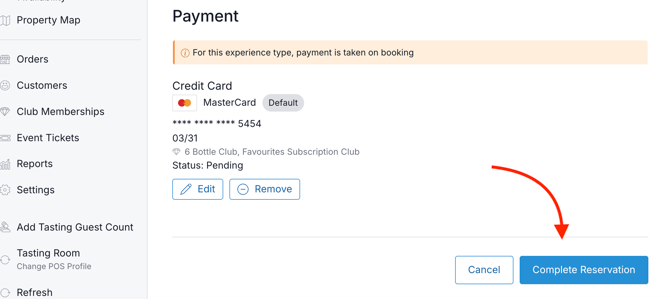
- Side Note: If you want to complete the payment for the customer, scroll down and click the Complete Reservation button.
- To email a link to the customer, click on More Actions > Email Reservation.
Note: The 'Email Reservation' function only appears if a customer record is attached.
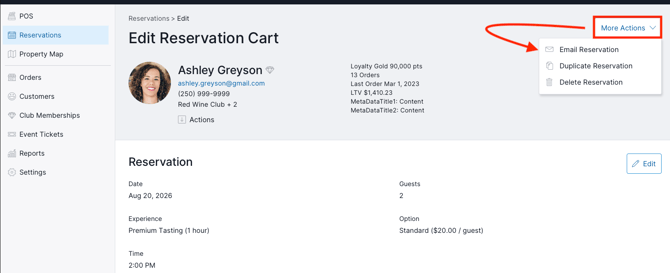
- A modal will appear and be pre-filled with the customer's email address.
(Optionally you can copy the website link and send it to the customer yourself).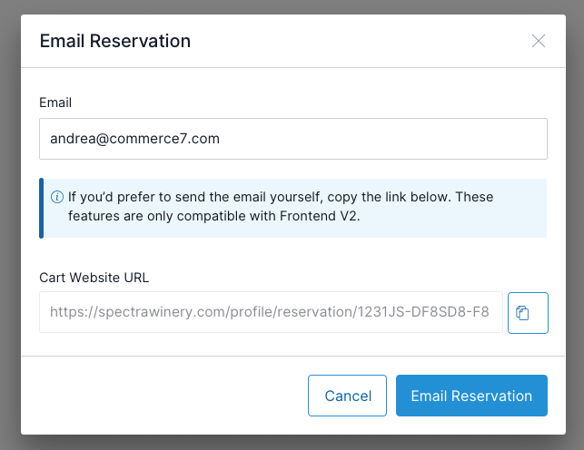
- Click the Email Reservation button to confirm.
- The customer will receive a transaction email with link to complete the order on the website.
Content for the emails can be edited under Settings > Emails > Reservation Cart Link.