Have specific reports automatically emailed to designated recipients on a daily, weekly, or monthly schedule. This ensures the insights you care about arrive directly in your inbox without any manual effort.
NOTE: The instructions in this article apply to the NEW version of WinePulse (with the blue banner at the top).
If you are using the previous version of WinePulse (with the black banner at the top), please contact Support to update your email report subscriptions.
IMPORTANT There are two report subscriptions that are automatically added for your convenience:
-
DTC Daily Overview (every morning)
-
Wine Club Snapshot (weekly on Mondays)
- Recipients: All Admin Owners
Need to update which email addresses receive these reports? See video below for instructions.
Adding or Editing Existing WinePulse Report Email Subscriptions
Create a New Email Report Subscription
Creating a New Email Report Subscription
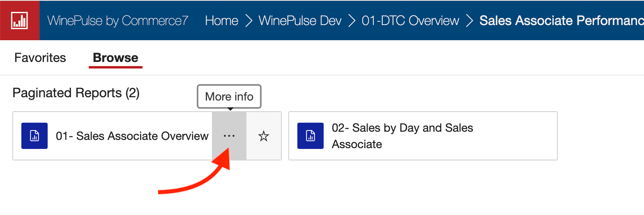
- Click the 3-dot icon to the right of the report you want to subscribe to by email.
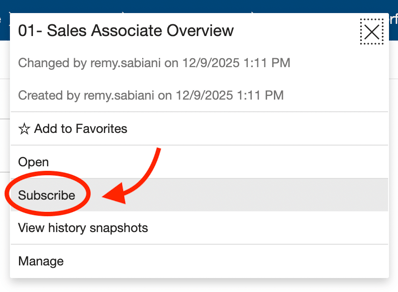
- In the modal, select Subscribe.
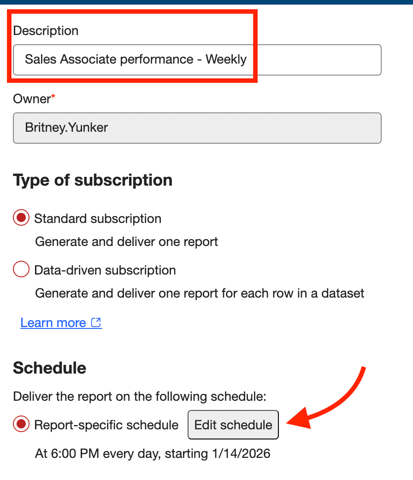
- Description: Enter a name for your Subscription (this is just visible to you)
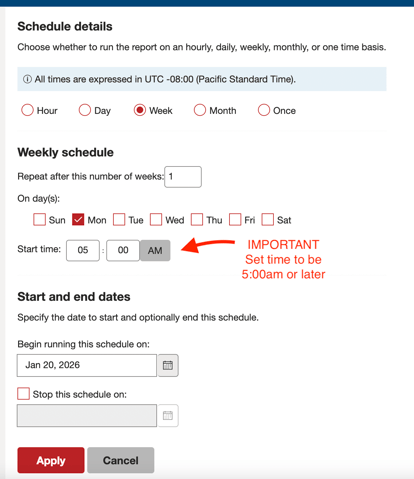
- Click the Edit Schedule button.
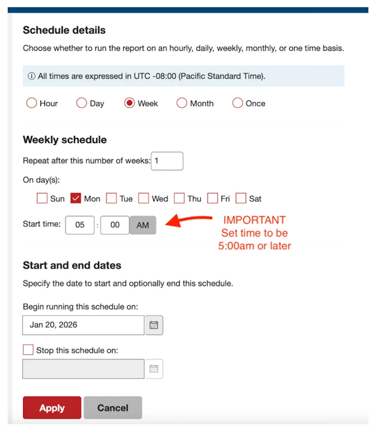
- Choose the frequency of your email (Daily, Weekly, Monthly) and select days of week/month.
- IMPORTANT! Start time should be set to 5:00AM or later. (Because data is only refreshed overnight, setting an earlier time may result in incomplete data in your report).
- Note that the DTC Daily Overview's delivery schedule cannot be customized. After the nightly data has finished processing, the report is automatically emailed, typically between midnight and 2:00 a.m. in the winery’s local time. (If an attempted time change reverts to the previously displayed time, this is expected).
- Click the Apply button.
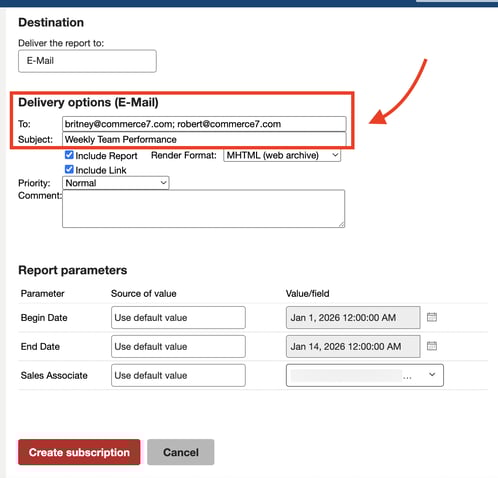
- Enter email address(es) and separate with semi-colons.
- Update the Subject of the email to have a meaningful name - as this will be seen by recipients of the emailed report.
- Click Create Subscription to finish. Your report will be sent at the designated day and time.

Editing an Existing Email Subscription
Editing an Existing Email Subscription
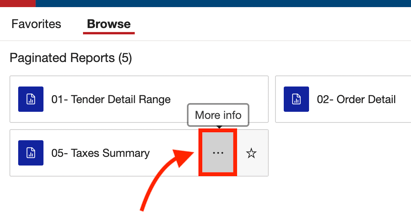
- Click the 3-dot icon to the right of the applicable report. (In this example, it's the Taxes Summary).
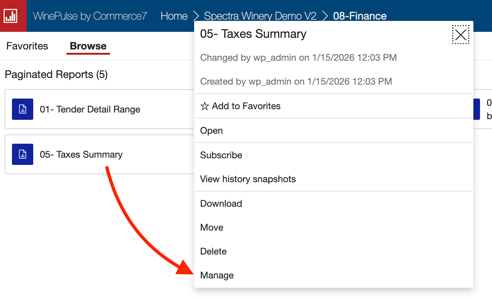
- In the dropdown, choose Manage.
- In the left-hand navigation, Choose Subscriptions.
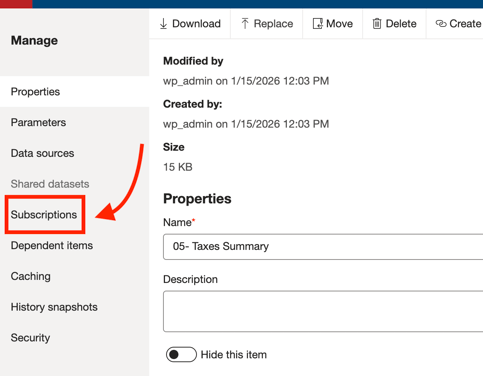
- Click the Edit link beside the applicable subscription.

- To edit recipient email addresses, scroll down to the Delivery Options section.
(Multiples should be separated by semicolons).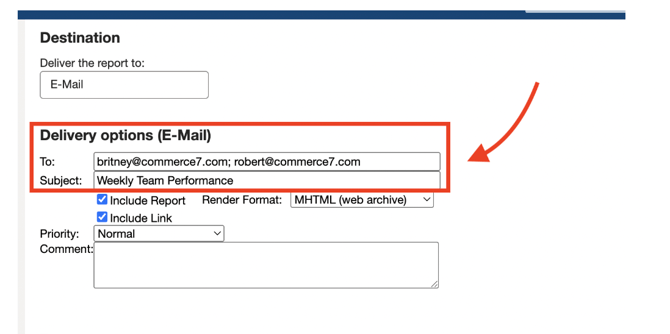
- Make changes to timing of the report if needed (example: change the day of the week or time of day that you receive the report).
- IMPORTANT! Start time should be set to 5:00AM or later. (Because data is only refreshed overnight, setting an earlier time may result in incomplete data in your report).
- Note that the DTC Daily Overview's delivery schedule cannot be customized.
After the nightly data has finished processing, the report is automatically emailed, typically between midnight and 2:00 a.m. in the winery’s local time. (If an attempted time change reverts to the previously displayed time, this is expected).
- Click the Apply button at the bottom of the page.